Installing on macOS
Who this page is for
Anyone installing al-Shamil on a Mac for the first time, or updating it to a newer version.
What you need first
- The download link from the support team. The file is named
Shamil-<version>.dmg(for exampleShamil-0.1.1.dmg), with a.sha256file beside it for anyone who wants to verify the download. - macOS 13 (Ventura) or newer. One application runs on both Apple Silicon and Intel.
Steps
-
Download the DMG file and open it with a double click.
-
Drag the Shamil icon into the Applications folder shown next to it.
-
Close the window and eject the disk image (click the eject symbol next to its name in Finder).
-
Open the application from the Applications folder. The first open is refused — this is expected, because the trial build is not signed by Apple:
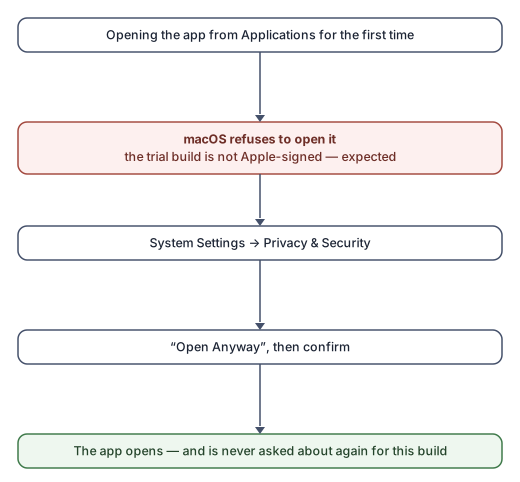
- Try opening it once and let the message appear.
- Open System Settings → Privacy & Security, scroll until you find the mention of Shamil, press Open Anyway and confirm.
- On versions older than macOS 15, a right click on the application and then Open is enough.
What you see next
The sign-in window, with the language list in case you want to change it before signing in. Continue in Signing in.
Updating to a newer version
Download the new DMG and drag the application into Applications over the old one. Your settings stay as they are, and all your data is on the server, so nothing is lost.
Common mistakes
- Running the application from inside the DMG window instead of dragging it to Applications: it works once and then its icon disappears. Drag it to Applications first.
- Expecting it to open on the first click. The first refusal is normal; the Open Anyway step is needed only once per version.
- Taking the security warning for a virus. The warning appears because
the trial build is unsigned, not because anything is wrong with the
file. For peace of mind, compare the output of
shasum -a 256with the accompanying.sha256file.