Keyboard navigation
Who this page is for
Anyone who enters a lot of data and wants their hands on the keyboard, not the mouse — especially anyone used to accounting programs where Enter moves between fields.
The navigation key: Tab or Enter
On every form, Tab moves to the next field and Shift+Tab to the previous one, and Tab reaches every control — check boxes, combos and buttons too, on Mac and Windows alike.
Anyone used to Enter switches the key in Master Data → Accounting Settings → General, which offers two options:
- “Tab moves to the next field (Enter presses the default button)” — the default.
- “Enter moves to the next field, like Tab” — and then Shift+Enter goes back to the previous field.
The choice is yours alone in this group (it changes nothing for your colleagues) and takes effect in the open windows at once. In Enter mode, Enter keeps its natural job where it is needed: a long text field inserts a new line, and a pressed button is activated.
Inside the line grids
In an entry's or invoice's line grid, the navigation key (Tab, or Enter in its mode) walks the editable cells:
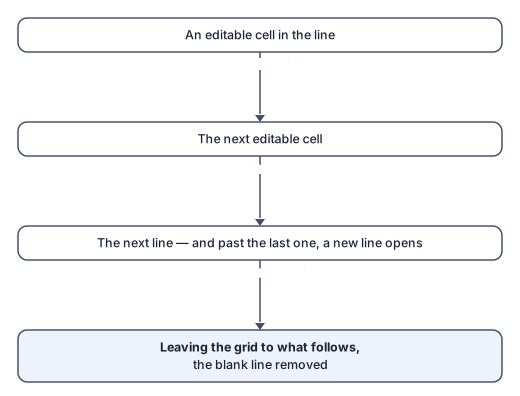
- After the last cell of a line it moves to the next line, and after the last line it opens a new one.
- On an empty line it leaves the grid for what follows and removes that empty line — so empty lines never pile up, and the keyboard always has a way out of the grid.
- Shift with the key goes backwards, and from the first cell it leaves the grid.
- In the entry's line grid, Delete removes the current line.
In the Journal Entries window, Ctrl+Enter moves between the window's whole sections: the header → the line grid → the button bar → the header again.
The common shortcuts
They work in every record window (on a Mac: ⌘ instead of Ctrl):
| Shortcut | What it does |
|---|---|
| Ctrl+N | New record |
| Ctrl+S | Save |
| Ctrl+D | Delete |
| Ctrl+F | Refresh (read again from the server) |
| Esc | Cancel the edits |
| Ctrl+W | Close the window |
| The arrow keys | Move between records on forms with a navigation bar; windows with a table or tree keep the arrows for it |
The full list — including the entries', vouchers', invoices' and reports' shortcuts — is in Accounting Settings → Shortcuts, read-only: “The keyboard shortcuts the program defines. They cannot be changed yet.”
Numbers and dates
- Type numbers with Latin digits (
123.45), with a point as the decimal separator. Numeric fields do not accept Arabic-Indic digits (١٢٣) — text fields such as the description accept any digits. - When the interface is Arabic, amounts and counts are displayed with Arabic-Indic digits automatically; invoice, voucher and reference numbers stay Latin as the server issued them.
- Dates are always shown and typed as
2026-10-28(year-month-day), in Latin digits and in every language, so day and month can never be confused. The field's calendar popup follows the interface language.
Common mistakes
- Typing an amount with Arabic-Indic digits from an Arabic keyboard, so the field refuses it: switch to Latin digits.
- Expecting Enter to save the record in Enter mode: saving is Ctrl+S; Enter only moves between fields.