Creating a journal entry
Who this page is for
Everyone who books a manual entry: an expense with no voucher, an adjustment, a correction, an opening balance. (Purchase and sales invoices and payment and receipt vouchers generate their own entries — do not repeat their entry here.)
What you need first
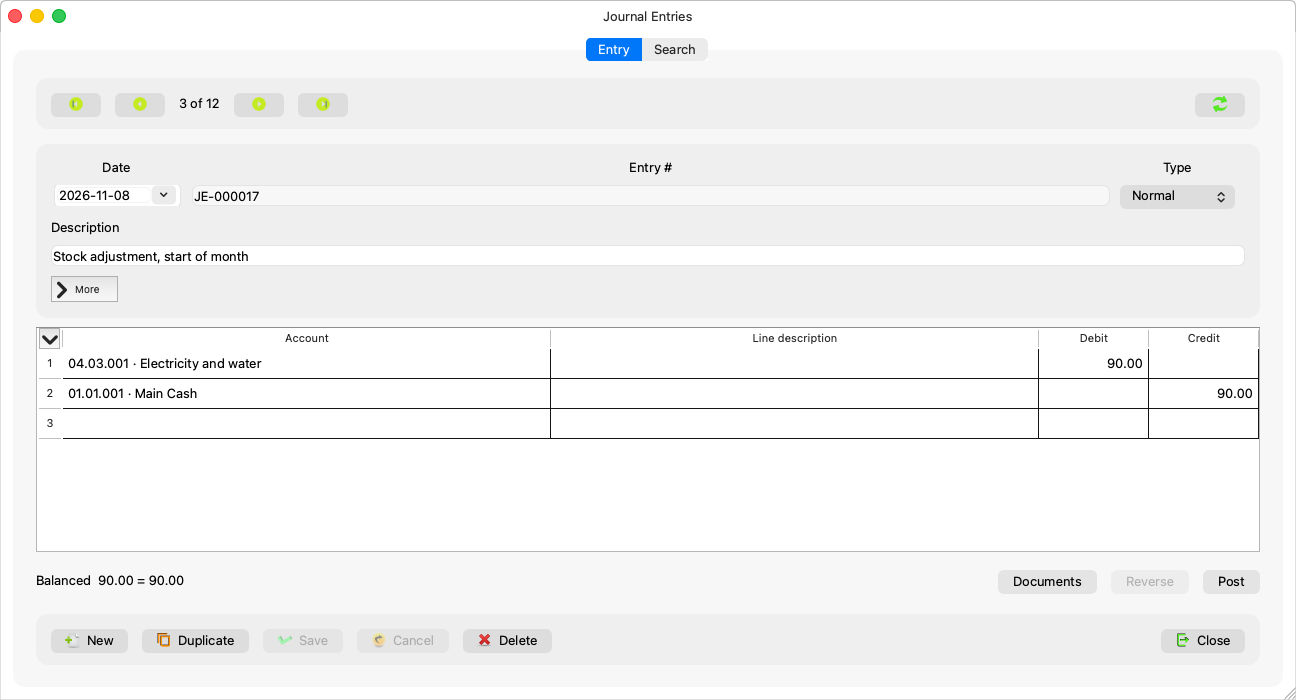
- The Journal Entries window open on an entity — The Journal Entries window.
- Posting accounts in the Chart of Accounts: the entry's lines accept nothing else.
Steps
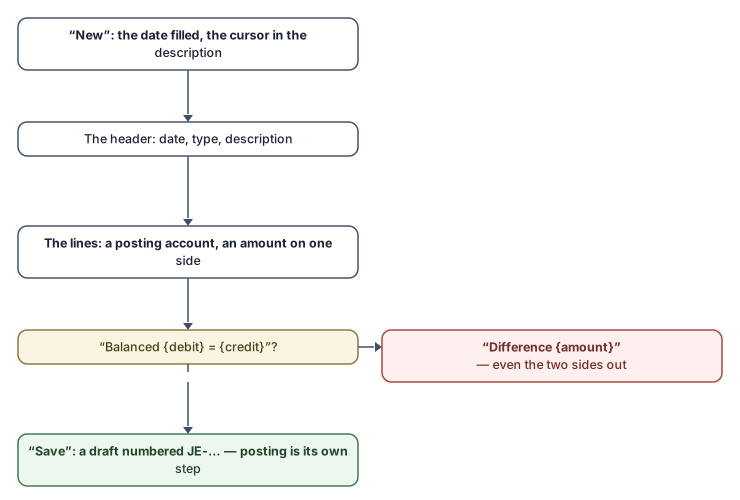
- Press New (Ctrl+N). The cursor lands in the description, and the date is filled with the date of the last save.
- Fill the header: the date, the type (usually Normal), and the description (required).
- Move to the lines grid (Ctrl+Enter walks you between the window's
sections). Per line: the account (type its code or part of its
name; the list matches
code · nameanywhere), a line description if you wish, and an amount on the debit or credit side. - Watch the balance line: “Balanced” with both totals, or “Difference” and the gap.
- Press Save (Ctrl+S). The entry is saved as a draft and
takes its number (
JE-000482). Posting is a separate step — Posting an entry.
Line-grid rules
- One side per line: typing a debit clears the credit, and the other way round.
- No negative amounts — “Amounts cannot be negative.”
- Posting accounts only: a group account never appears in the list at all.
- A blank line always waits at the bottom; Enter walks the cells and past the last cell opens a new line; Delete removes the current line.
- An incomplete line is not sent and does not stop you: a line with only a description, or an amount without an account, is ignored on save.
Date and period
- The app works the period out from the date. At the Simple level you see no period field; a date in a closed period asks: “{date} falls in {name}, which you closed. Save the entry anyway? The period will be reopened.”
- At the Professional level a Period field appears with the open periods, on the resolved one by default; choosing another is a deliberate override (“Pick another open period only for a deliberately backdated adjustment.”), and a closed period refuses the save: “At the Professional level a closed period is reopened in Accounting Periods.”
- A date in a closed fiscal year cannot be saved at either level: “This date falls in a closed fiscal year, so nothing dated in it can be saved. Choose another date, or ask a group administrator to reopen the year.”
Rules and refusals
The Save button stays disabled, with the reason in its tooltip, until the entry is right. The main sentences:
| Sentence | What to do |
|---|---|
| “An entry needs a description.” | Write the description. |
| “Choose a type for the entry.” | Pick the type. |
| “Debits and credits do not balance.” | Even the two sides; watch the balance line. |
| “Each line needs an amount on one side, debit or credit.” | Complete the line or clear it. |
| “No accounting period covers this date. Generate it in Accounting Periods.” | Generate the year's periods first. |
| “One of the accounts no longer exists.” | Someone deleted it; choose another account and refresh. |
Cancel (Esc) discards the changes without asking and shows the entry as it was; navigating or refreshing with unsaved changes asks first.
Common mistakes
- Booking an invoice or a payment as a manual entry, so it doubles when its document is entered — use that document's window, and the entry is generated.
- Typing the amount on both sides: the app clears the other side, so do not be surprised when what you typed first disappears.
- Forgetting that saving does not post: a draft stays out of the default (booked) reports until it is posted.