Customizing table columns
Who this page is for
Anyone who wants to hide columns they do not use, rename them in their own terms, or adjust their widths — in the search tables (invoices, entries, vouchers, products, vendors and customers…) and in the line grids inside the entry and the invoice.
What you need first
- A window with a customizable table. Its mark is a small arrow at the leading edge of the table's header — in line grids, the arrow sits in the corner above the line numbers.
Steps
-
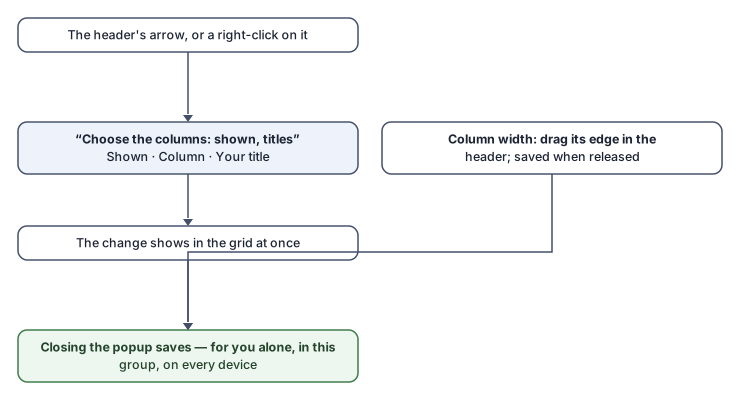
Press the header's arrow, or right-click the header. The “Choose the columns: shown, titles” popup opens.
-
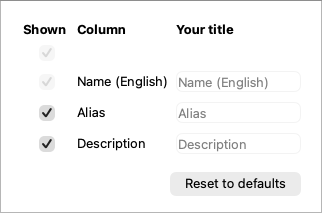
Each column has a row in it:
- Shown — the show/hide mark; the table changes immediately.
- Column — its original title as the window designed it.
- Your title — type a title of your own; leave it empty for the original.
-
Close the popup; the changes are then saved once.
-
Column widths are adjusted on the table itself: drag the column's edge in the header; the width is saved when the drag is released (a double click on the edge fits the width to the content).
-
Reset to defaults in the popup puts everything back as the window designed it.
What you see next
Your choices are yours alone and per group, stored on the server: you find them on any machine you sign in from, and you never see a colleague's changed table.
Rules and refusals
- Some columns cannot be hidden because the window does not work without them — the invoice number, the quantity, the price and the line total, the main-language name… Their tooltip says: “This column is always shown.” And likewise “At least one column stays shown.”
- Some columns cannot be width-dragged where the table sizes them itself.
- “The subscription is not active: column changes are not saved.” — your stored choices are shown, but new ones are not saved.
- “The column settings could not be saved.” appears in the status bar and does not interrupt your work; the table stays as you set it for this session.
Common mistakes
- Hiding a column and forgetting it, then wondering later why the table looks “incomplete”. Open the popup and show it again — and when a refusal message points at a hidden column, the window reveals it for you temporarily by itself.
- Expecting colleagues to see your columns. The customization is personal.