Using the reports
Who this page is for
For every user. All report windows work the same way, explained here; each report's own page explains its options and what it shows.
What you need first
- An open group: “Select a database first (File → Database List).”
- The Reports menu is read from the server: “Loading reports…” the first time, and “Try again” if the read failed. Reports work even while the subscription is not active — reading is reading.
Steps
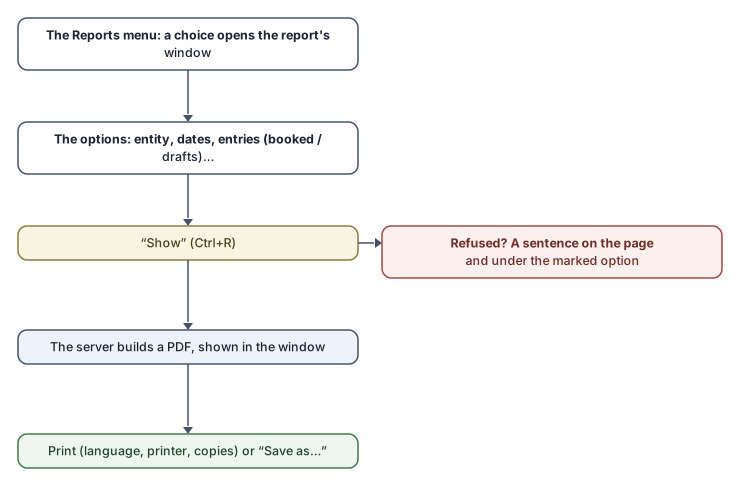
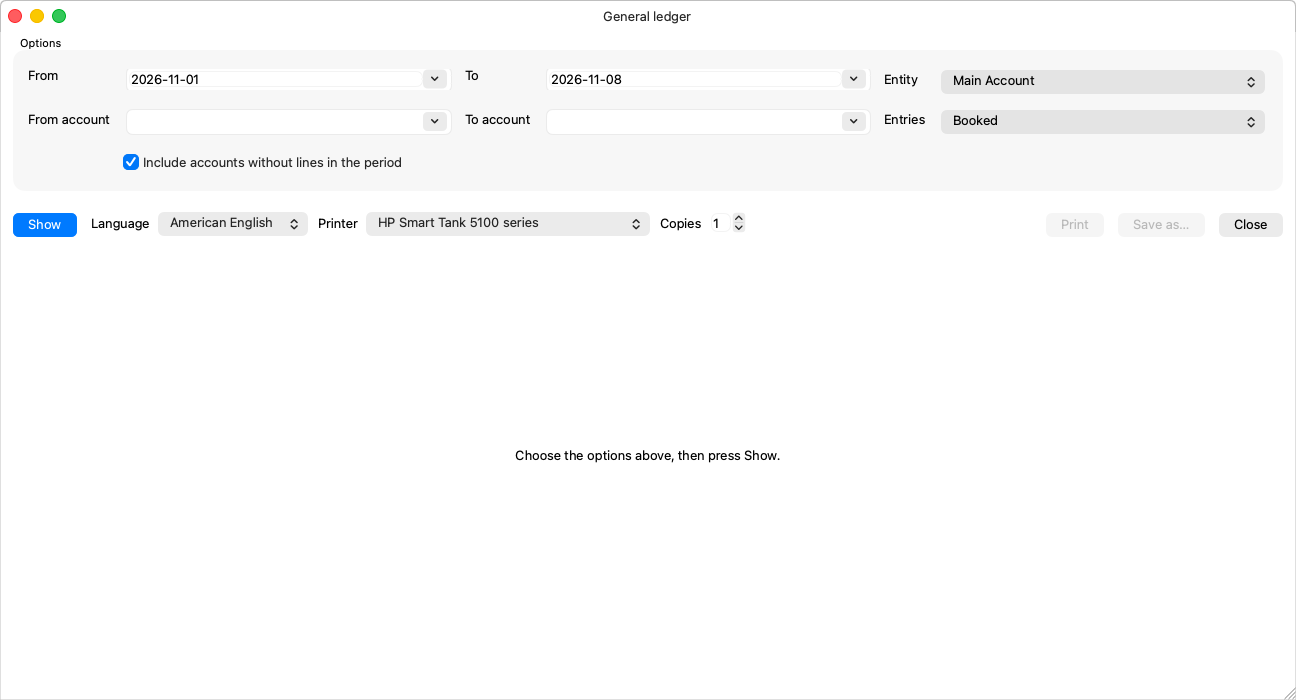
- Choose the report from the Reports menu. Its window opens with the options on top, and the page says “Choose the options above, then press Show.”
- Fill the options — a missing required one is marked: “Fill this in to show the report.”
- Press Show (Ctrl+R): “Preparing the report…”, then the PDF appears inside the window — the server builds it, so the figures are the books' figures at the moment of asking.
- Print (Ctrl+P) on the chosen printer and copies, or Save as… for a PDF file — “Saved: {path}”.
The shared options
| Option | Meaning |
|---|---|
| Entity | Most reports are per entity; “All entities” where it is offered. |
| From / To or On | The range, or the snapshot's day. The journal and the ledger start on the current month, the rest on the chosen entity's fiscal year. |
| Entries | “Booked” (the default — the committed books), “Drafts”, or “Booked and drafts”. |
| Language | The language the report prints in: “The language the report is printed in. Changing it asks the server for the report again.” |
What you chose is remembered for you per report in the group (dates excepted), so the report opens on your options next time.
Rules and refusals
A refusal is sentences on the page and under the marked option, never a popup:
| Message | What to do |
|---|---|
| “Some options were not accepted. Check the marked ones.” | Fix what is marked — “The end date is before the start date.”, “The period crosses into another fiscal year. Keep both dates in one fiscal year.”… |
| “This entity has no fiscal-year start. Set its start date in Entities, or the report will be refused.” | Complete the entity's data. |
| “The report would print {rows} rows; one PDF holds at most {max} of them.” | Narrow it along the ways shown with it: “Choose a shorter period.”, “Show fewer levels.” — “Or choose Booked under Entries: without the drafts it is shorter.” The account statement alone prints in parts — Account statement. |
| “The books are busy with postings. Trying again…” | The window retries by itself; then “Try again in a moment.” if they stay busy. |
| “This report is no longer offered. Open the Reports menu again to see what is.” | The menu is read afresh. |
| “An option of this report is not shown here yet; the server's default is used for it. A newer al-Shamil shows it.” | A notice, not a block: update the app to see it. |
With nothing shown, Print and Save as… are disabled with the reason as their tooltip; Ctrl+P says it in the status bar.
Common mistakes
- Wondering where the drafts are: the default is “Booked” — choose “Booked and drafts” to see them.
- Comparing two reports asked at two different moments while the books move between them.
Related pages
- The rest of this section, report by report — from the journal entries report to the VAT report.
- Account statement — the only one that prints in parts.