Printing a sales invoice
Who this page is for
Anyone handing a customer their invoice on paper or as a PDF file. The server builds the invoice file with the seller's logo, details and the payment reference — the application draws nothing itself, so the paper is the same whatever the machine. Printing is for sales only: “Only a sales invoice can be printed.”
What you need first
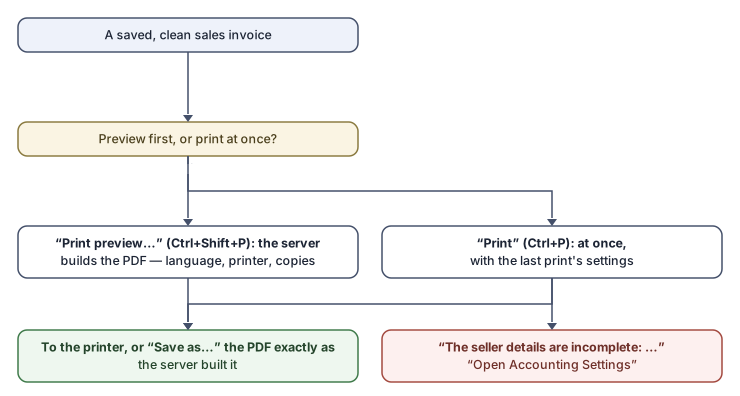
- A saved, clean sales invoice: “Save the invoice first: only a saved invoice can be printed.” / “Save or discard the changes first: the print shows the invoice as it is stored.” — any status prints, draft or posted.
- The seller details completed in the settings (below).
The two paths
Print preview… (Ctrl+Shift+P)
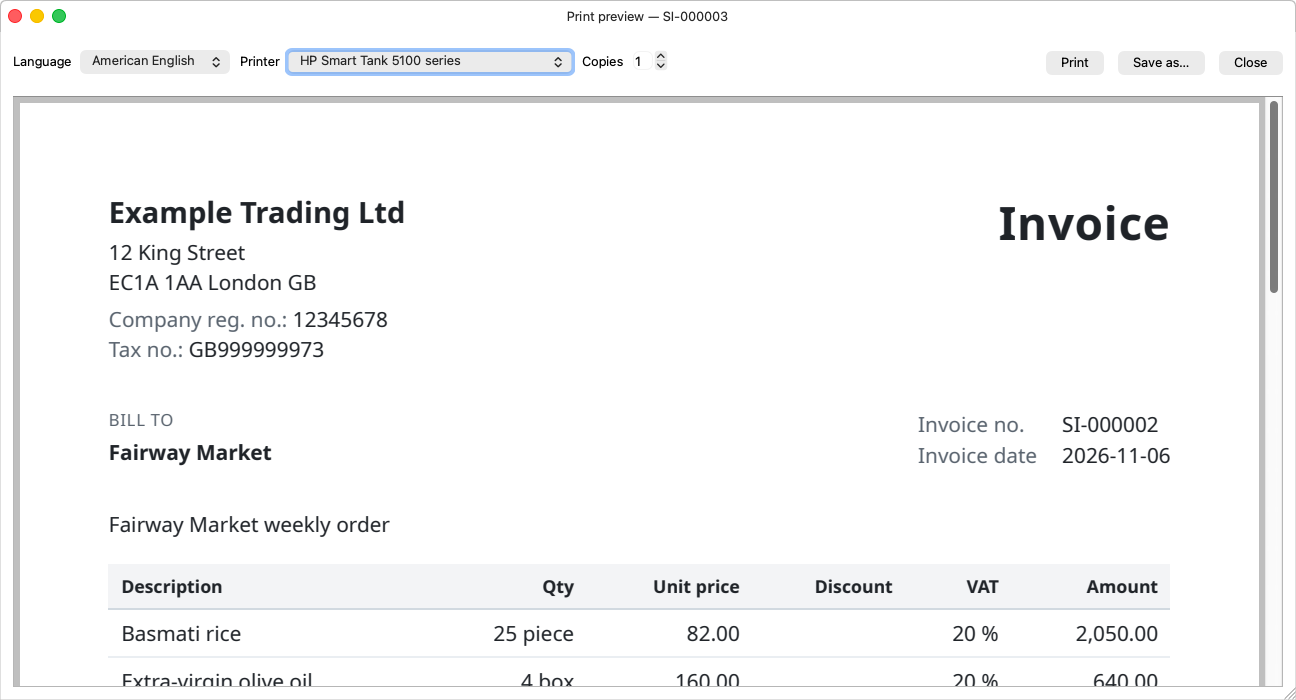
Opens the Print preview window: “The invoice as it prints, in the language you choose, before anything is printed.”
| Element | What it means |
|---|---|
| Language | “The language the invoice is printed in. Changing it asks the server for the invoice again.” — the paper's language is independent of your interface language. |
| Printer and Copies | A long printer name never widens the window; the combo's tooltip carries it in full. |
| To the chosen printer. | |
| Save as… | “Save the invoice as PDF” — the file exactly as the server built it, unchanged. |
Print (Ctrl+P)
Prints at once with no window — “Prints at once, in the language, on the printer and with the copies of the last print. Use Print preview to check first.” — and then in the status bar: “Sent to the printer {printer}: {name}”. The application remembers the last print's language, printer and copies for you on this machine; a printer that is gone gives way to the default, and says so: “({remembered} is not available: printed on the default printer.)”
Missing seller details
The server does not build an invoice without complete seller details:
“The seller details are incomplete: {fields}. Complete them in Accounting Settings, then try again.”
The message names the fields (company name, street, postal code, city, company registration number, tax or VAT number), and the Open Accounting Settings button takes an administrator straight to the first one — for anyone else: “Ask a group administrator or leader to complete them in Accounting Settings.” Details in The seller details.
Rules and refusals
| Message | What to do |
|---|---|
| “The PDF service is unavailable. Try again. The invoice itself is fine.” | A temporary fault in building the file — Try again in the window, or shortly. |
| “The server's answer is not a PDF that can be shown. Try again.” | A malformed answer; ask again. |
| “This invoice no longer exists. It may have been deleted on another device.” | Close and refresh the search. |
| “The printer could not be started. Check that it is on and connected.” / “No printer is installed.” | The printer's business, not the invoice's; Save as… still works. |
The preview's refusals are sentences in the window where the page would be, never popups; the direct print's remaining refusals are a message box, and its success a line in the status bar.
Common mistakes
- Sending a draft to the customer: a draft prints for internal review, but what goes to the customer should be posted — its number and reference are final.
- Changing the seller details and expecting an old invoice to change: the paper is built on every request from today's details, so print your copy before a substantial change.