Two-factor authentication
Two-factor authentication puts a rotating code from your phone on top of the password: whoever steals your password still cannot enter your account. For an account that runs business groups and books, enable it.
Who is this page for?
Every user — and urgently for group leaders and accountants.
What you need first
An authenticator app on your phone (such as Google Authenticator).
Steps
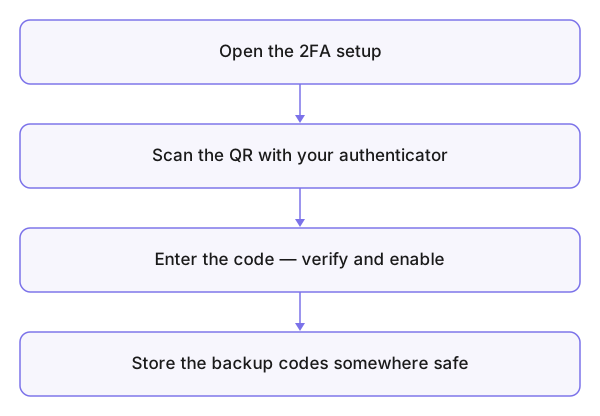
- Open Setup Two-Factor Authentication from your account settings.
- Scan the QR code with the app, or enter the secret manually if scanning fails.
- Enter authentication code as the app shows it, then press Verify and Enable 2FA.
- Store the displayed backup codes somewhere safe — away from the phone itself.
What you see after
At every sign-in the code is asked after the password.
Common mistakes
- Ignoring the backup codes and then losing the phone — the codes are the only way back in your own hands.
- Deleting the app or wiping the phone before moving the authenticators.
- A code that is always "wrong" — usually the phone's clock is off; enable automatic time.