Signing out and signing back in
Who this page is for
Anyone who shares the machine with others, or who suddenly saw a sign-in window while working.
Signing out
File → Sign out — its tooltip: “Close every window and sign out, so another person can sign in”.
If windows hold unsaved changes, one question names them:
“Signing out closes every window. These windows have unsaved changes, which will be lost:”
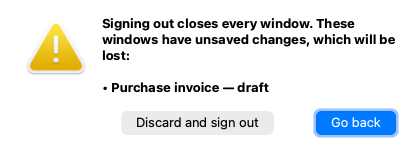
Go back keeps you where you are so you can save first; Discard and sign out goes ahead. The sign-in window then appears, and the group stays selected for the next sign-in.
The session lapsing while you work
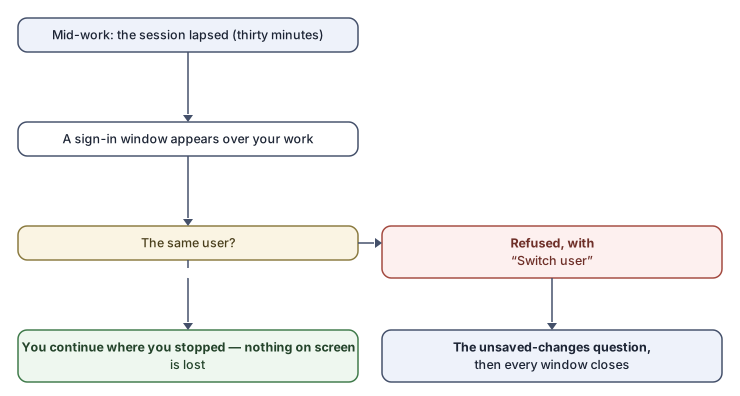
A sign-in session lasts thirty minutes. If it lapses while you are away, a sign-in window appears over your work at the next request:

-
Enter your password and the application continues where it stopped — nothing on screen is lost.
-
The window renews the session of the same user only. If someone else enters their details, they are refused:
“This is not the user who was signed in. Sign in as that user to carry on, or switch user: every window then closes.”
The Switch user button asks about unsaved changes, then closes every window and opens the session for the new user.
Quitting the application
File → Exit (or ⌘Q on a Mac, Alt+F4 on Windows) asks the same unsaved-changes question — “Quit al-Shamil” with Discard and quit or Go back — and then closes the application. Window sizes and positions are saved for next time.
Common mistakes
- Switching user to renew your own session: no need — enter your password in the same window and continue.
- Leaving the machine without signing out in a shared office: whoever sits down next works under your name until the session lapses.