Tasks: views, properties and follow-up
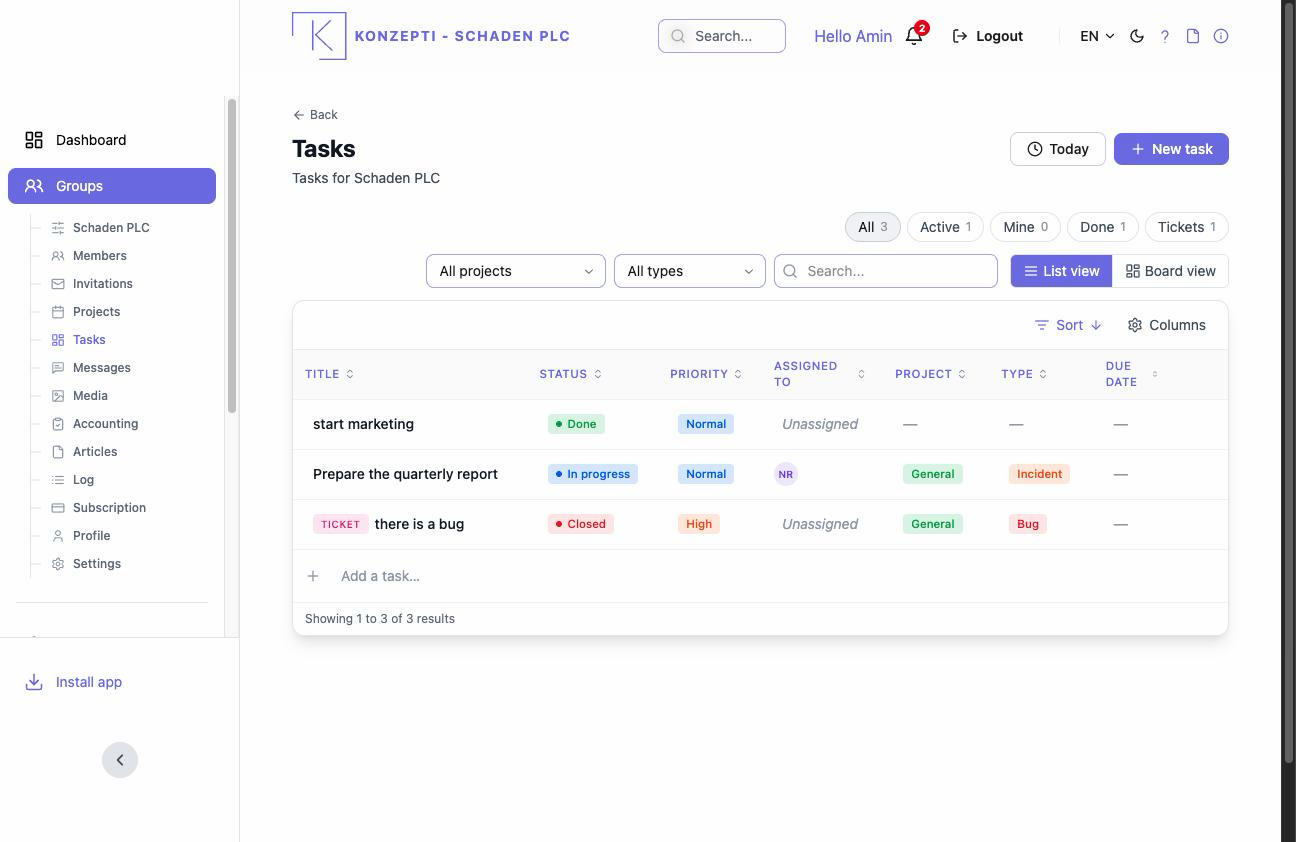
The task is the atom of the group's work: it has a project, assignees, a due date, a priority and a status, and it carries its own discussion and trail. The Tasks page gathers them all; this page explains how to read it and work in it day by day. To create a task, see New task.
Who is this page for?
Every member working with tasks — those who hand them out and those they are assigned to.
Views and filters
- List view — a table with columns: title, project, Assigned to, Due date, Priority, Status.
- Board view — columns per status; dragging a task between them changes its state.
- Filters: Mine for what is assigned to you, the project, the state (active/done), and Tickets for support tasks arriving from customers.
A task's properties
Inside the task you find all of them:
- Description — rich formatted text.
- Reporter — who created it, and Assigned to — those responsible; one task is assigned to several members together.
- Due date or a Date range, and the Priority from Low to Critical.
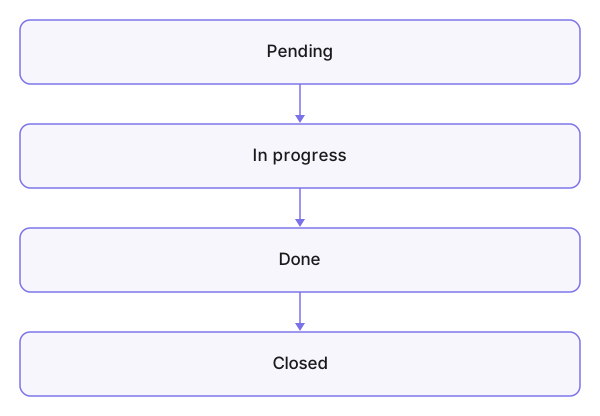
- Status: To do → In progress → Done → Closed.
- A support task carries the Ticket badge, its type (question, report…) and the Customer details — detailed in the support-ticket concept page.
The checklist
Break a task down with the Checklist: Add checklist, then "Add an item…", and tick off what's done to advance its bar. Items are edited and deleted freely — completing them does not close the task; the status is yours.
Discussion and trail
- Comments — the task's discussion right where the task is, not in a side inbox.
- Activity — a trail of every change: who did what and when. What concerns you reaches the Notifications bell, and a new assignment also arrives by email.
Common mistakes
- Discussing the task in the general messages instead of its comments — the context slips away from the trail and from newly assigned members.
- Leaving dates and priorities empty — the board and statistics lose their meaning.
- Closing a task with work remaining because the checklist happens to be complete.
Related pages
New task · Projects and their statistics · Connecting Bitbucket