Signing in
Who this page is for
Every user. Signing in is required on every start of the application: your data is on the server, and the application stores neither your password nor your sign-in token on the machine.
What you need first
- The username and password you were given (the same Konzepti account).
- An internet connection.
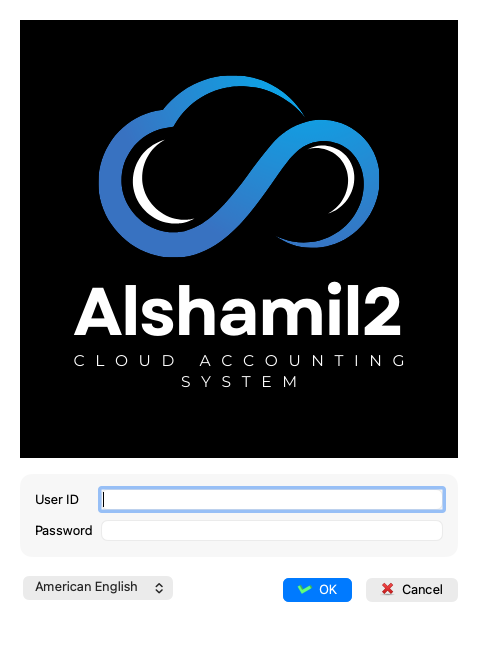
Fields explained
| Field | What it means |
|---|---|
| User ID | Your account name. |
| Password | The same account password used in Konzepti. |
| The language list | The interface language. Every language is written in its own script (العربية, English…), so you can fix a language you cannot read before signing in. |
Steps
- Start the application; the sign-in window appears.
- Change the language from the list if needed — the window switches immediately.
- Enter the username and password.
- Press Login.
What you see next
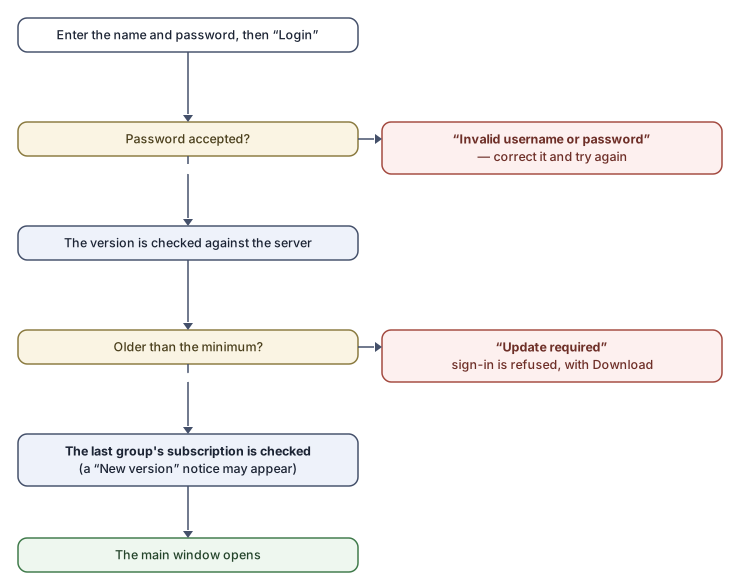
- The application checks its version against the server — see The update notice. Most of the time nothing appears.
- The application checks the subscription of the last group you opened, and then the main window opens on that group. The subscription status shows in the status bar (such as “active”).
- If you have no remembered group, open File → Database List and choose one — see Choosing the group.
Rules and refusals
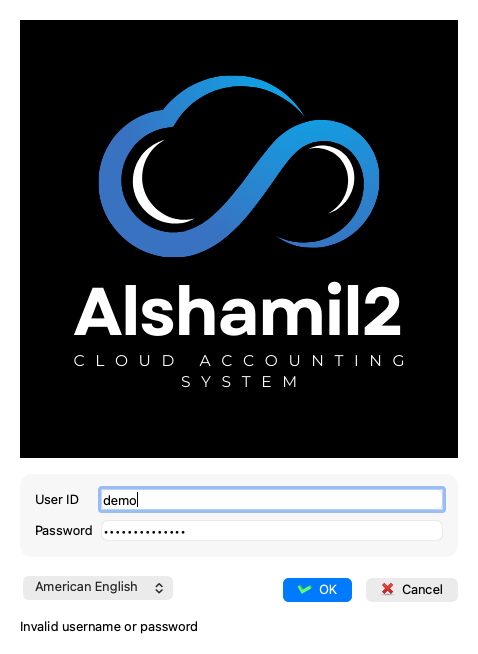
The application tells your mistake apart from the server's trouble:
| Message | What it means and what to do |
|---|---|
| “Invalid username or password” | What you entered is wrong. Check it and try again. |
| “The server could not be reached. Check the connection and try again.” | No connection to the server: check your internet. |
| “The server did not answer in time. Try again in a moment.” | The server is slow right now; the application waits ten seconds, then stops. |
| “The server could not complete this. Try again; contact support if it keeps happening.” | A fault on the server itself. Try again shortly, and write to support if it keeps happening. |
| “Install the new version of AlShamil to sign in.” | Your version is older than the minimum — see The update notice. |
Also worth knowing:
- A sign-in session lasts thirty minutes and the application renews it while you work; if it lapses while you are away, a sign-in window appears over your work so you can sign in again without losing anything — see Signing out and signing back in.
- The sign-in window remembers its size and position on screen.
Common mistakes
- Being surprised that the password is asked on every start. This is deliberate: no sign-in token is ever stored on the machine.
- Caps Lock is on, so a correct password is refused.